Setup
Two steps in the app, then a few settings on your phone and in Google Voice.
In Call Guard
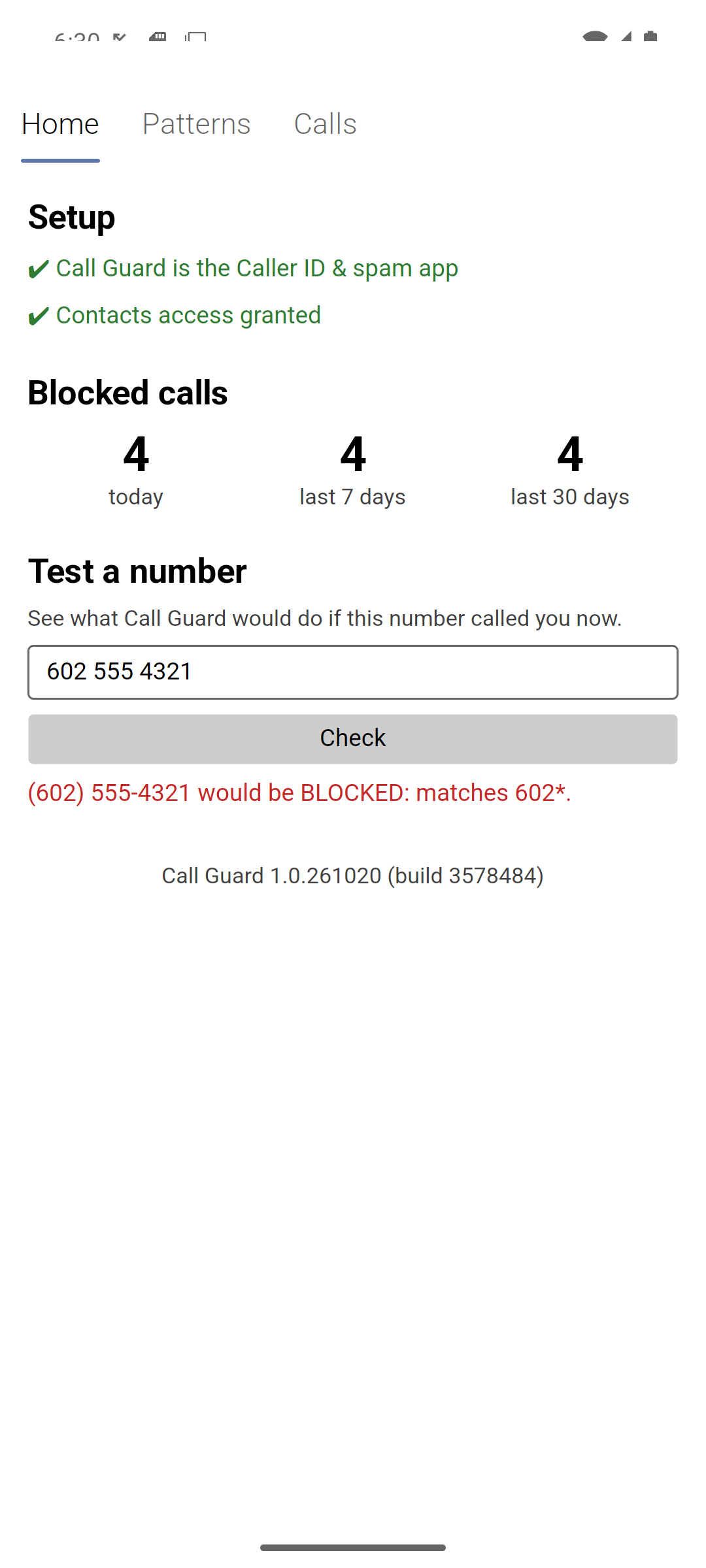
Open Call Guard. The Setup section of the Home tab shows what still needs doing; when both lines are green ✔ you’re done.
1. Make Call Guard the Caller ID & spam app
Tap Set as Caller ID & spam app, choose Call Guard and tap Set as default.
This is the Android setting that lets one app see incoming calls before your phone rings — it’s what Call Guard needs to block anything. Only one app can have it, so it takes the place of Phone by Google’s caller ID & spam feature: Google’s spam labels on incoming calls go away. Turning on Google Voice’s spam filter (below) covers spam instead.
You can also set it under Settings → Apps → Default apps → Caller ID & spam app. If the line on the Home tab turns red later, another app has taken the role — tap the button again.
2. Allow contacts access
Tap Allow contacts access and allow it.
Call Guard checks every number it is about to block against your contacts, so the people you know always get through, even from a blocked area code. Without contacts access Call Guard blocks nothing, to be safe.
3. Add your patterns
On the Patterns tab, add what you want blocked — for example 602* for the whole 602 area code. All about patterns.
Google Voice
If people call you on a Google Voice number that’s forwarded to your phone, Call Guard only works when those calls reach the phone as normal calls showing the caller’s number. Change these settings (the exact wording varies a little between the Voice app and voice.google.com):
| Setting | Where | Why |
|---|---|---|
| Use carrier only | Voice app → Settings → Making and receiving calls | Voice calls then arrive as ordinary phone calls, which Call Guard can screen. Calls through the Voice app itself (over Wi-Fi or data) bypass Call Guard. |
| Show the caller’s number on forwarded calls | Voice settings → Calls | Otherwise every forwarded call shows your Voice number, which never matches your patterns. |
| Your phone number linked and forwarding | Voice settings → Linked numbers / Calls | So Voice calls ring through to your phone at all. |
| Filter spam (recommended) | Voice settings → Security | Catches spoofed and spam calls before Voice forwards them — the spam protection you no longer get from Phone by Google. |
To check: after a call to your Voice number, Call Guard’s Calls tab should show the caller’s number. If it shows your own Voice number for every call, the caller-ID setting is still wrong.
Phone app
Private and hidden numbers
Call Guard can’t check a number it can’t see, so calls with no caller ID are left to the Phone app. To block them: Phone app → ⋮ → Settings → Blocked numbers → turn on Unknown.
Android blocks those calls before Call Guard is asked, so they appear in the Phone app’s Recents, not in Call Guard’s Calls tab or its blocked-call counts.
Test it
- On the Home tab, type a number your pattern covers into Test a number and tap Check: it should say would be BLOCKED. A contact’s number should say would ring: contact.
- For a live test, have someone who isn’t in your contacts call you from a number your pattern covers. Your phone shouldn’t ring, and the Calls tab shows
BLOCKED.